Templates
Templates are complete, working apps you can clone and make your own. Instead of describing an app from scratch, you start from something that already has pages, a design, and in most cases a real backend, then ask Roc to reshape it around your idea. This page covers where to find templates, how cloning works, how to publish your own, and how remixing published apps differs from templates.
Where to browse
There are two public galleries. instroc.com/templates is the community gallery, where you can browse templates built by the community and clone any one of them. The Showcase at instroc.com/discover is a smaller, curated set hand-picked by the Instroc team for quality and design. There is also a Templates tab right inside your dashboard, so you can start from a template without leaving the app.
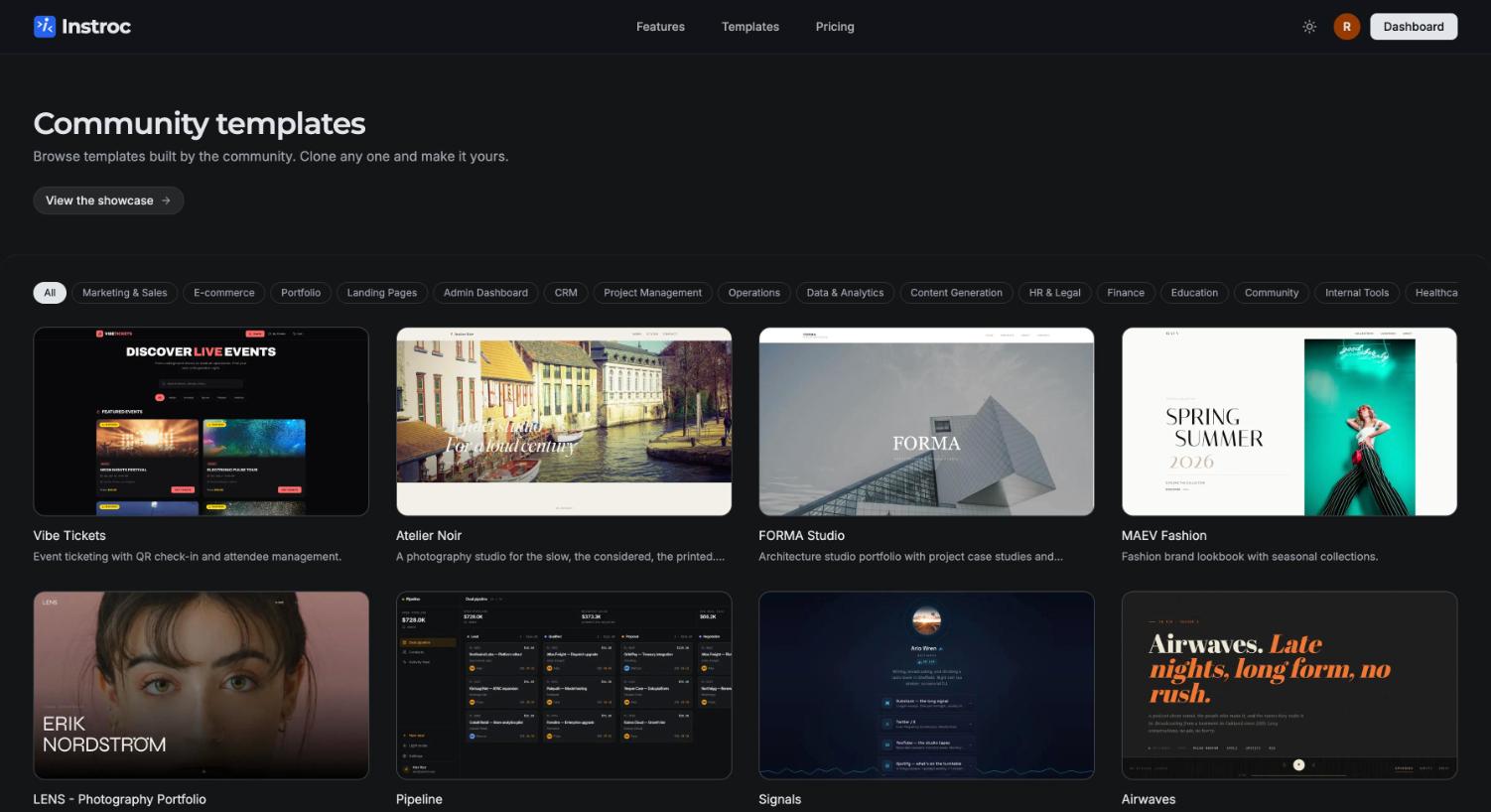
Each card shows a thumbnail, the template's title, its author, and how many times it has been cloned. You can filter the galleries by search, category, and sort order, and every template has its own detail page.
Previewing a template
Click a template to open its preview modal, which loads the template as a live, interactive app inside the modal. You are not looking at screenshots; you can click through the pages and try the flows before deciding. When it fits, the Use Template button asks "Clone this template?" and creates a fresh copy in your dashboard, then opens it in the editor. From there it behaves like any project: chat with Roc, edit the code, and publish when ready.
Official templates
Instroc ships roughly 45 official templates across a wide range of categories, including Marketing & Sales, E-commerce, Portfolio, Landing Pages, Admin Dashboard, CRM, Project Management, Finance, Education, and Community. They are built to the same standard as a strong Roc build: distinctive design, multiple pages, and mobile-friendly layouts.
Most official templates include a working backend out of the box: user accounts, a database with sensible tables, and an owner-only admin area at /admin for managing the app's content. That means a cloned template is not just a pretty frontend; forms save real records and sign-in works from the first minute. See Backend overview for how the backend pieces fit together.
After cloning, tell Roc what your version is about in one message ("This is now a booking site for a dog grooming studio in Malmo called Fluff & Fold"). Roc will rework the copy, branding, and structure around your business while keeping the working foundation.
Publishing your own template
Any published app can become a template. Open Workspace > App Template in the editor, or use "Publish as template" from the project card menu on your dashboard. Your app must be published first, and you will need to provide a title, a description, one or more categories, tags, and at least one screenshot. Once accepted, your template appears in the community gallery with your name on the card, and its clone count grows as others use it.
Remixing published apps
Remixing is a close cousin of templates. Free published apps display a "Remix with Instroc" pill, and visitors can clone the app straight from its live URL. As the owner, you can switch remixing off in your publish settings if you would rather keep your app clone-free.
What gets copied is strictly limited. A remix copies the app's code and its database schema, so the remixer gets a working structure. It never copies your end users' data, uploaded files, secrets, or API keys. Remixed apps carry a "Remixed from" attribution pointing back to the original.
| Copied in a remix | Never copied |
|---|---|
| App code | End-user data and records |
| Database schema (table structure) | Uploaded files |
| Secrets and API keys |
Where to go next
If you would rather start from a blank slate, see Create a project. For getting the most out of Roc once you have cloned something, read Roc, your AI builder and Prompting best practices.